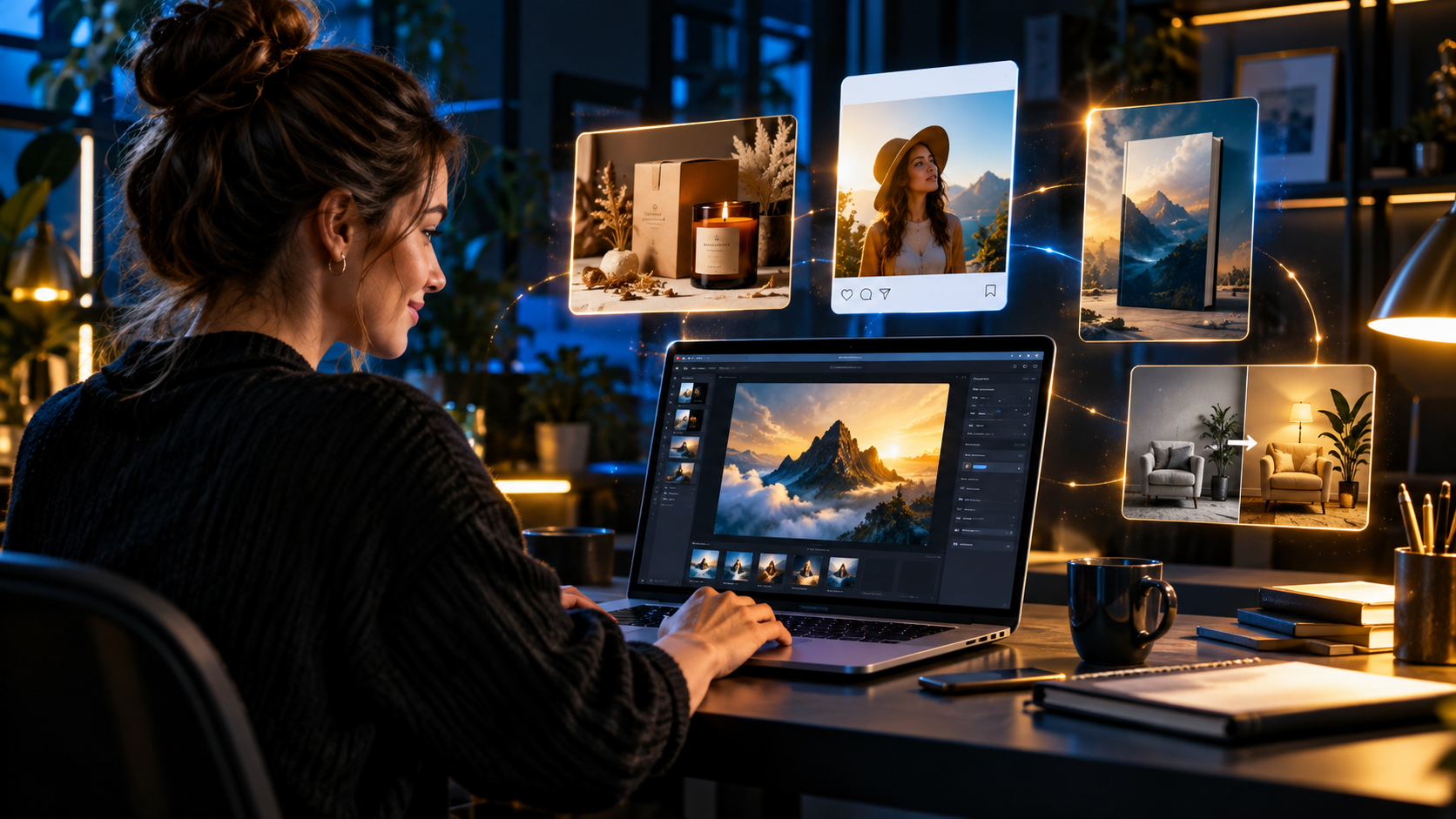
OpenAI has released ChatGPT Images 2.5, an update designed to make image creation sharper, editing more precise and generation faster.
The headline improvements are useful, but the biggest change for beginners may be the simpler workflow. Templates can provide a starting point, mobile users can turn a rough sketch into a finished visual, and prompts can be shared so another person can create their own version.
For small businesses, Etsy sellers, authors and content creators, this could reduce the time spent moving between separate design tools. It does not remove the need to check every image before publishing, especially text, product accuracy and brand consistency.
What has changed in ChatGPT Images 2.5?
OpenAI says the new version produces sharper details, follows editing instructions more precisely and generates images faster. Those improvements apply to both creating a new visual and changing an image you already have.
The update also introduces four practical ways to work: starting from a template, turning a mobile sketch into an image, editing or commenting on an image on mobile, and sharing a prompt so somebody else can make their own version.
ChatGPT Images remains available across all ChatGPT tiers on web, iOS and Android. Availability of individual features can vary during the rollout, and OpenAI says templates are not yet available in Work mode.
- Sharper image details
- More precise changes to existing images
- Faster generation
- Templates for common visual formats
- Sketch-to-image creation on mobile
- Shareable prompt templates
Why templates matter for beginners
A blank prompt box can be surprisingly difficult. You may know that you need a poster, product graphic or logo idea without knowing how to describe the composition, lighting and style.
Templates provide a structured starting point. Open Images, choose Templates, select a category and customise the details. ChatGPT may then ask follow-up questions about the style or request a reference image.
This should make the first draft easier, but a template is not a finished brand system. Keep a short record of your preferred colours, fonts, image style, audience and tone. Reuse those instructions so a set of graphics feels connected rather than random.
Five useful jobs a small business can try
The strongest use case is not creating images simply because the tool is new. Start with a visual task that already costs you time or money and compare the finished result with your current method.
An Etsy or Payhip seller could create a clean lifestyle scene around a genuine product cover. An author could explore book-cover concepts before producing the final print-ready artwork. A local business could draft a social post, flyer background or seasonal promotion. A creator could produce a thumbnail concept, while a service business could build a simple before-and-after illustration.
When a visual represents a real product, keep the product itself accurate. AI can accidentally change labels, page counts, colours, proportions or included items. Use your real product image as the reference and ask the system to change only the background or surrounding scene.
- Product mockups for digital downloads
- Social-media graphics and campaign concepts
- Book-cover and thumbnail ideas
- Background removal or replacement
- Simple visual explanations for services
A simple product-image workflow
Begin with one strong source file: the real cover, product photograph or screenshot the customer will receive. Decide the exact job of the new image—such as showing the product on a desk, demonstrating scale or explaining what is included.
Next, describe the subject, setting, composition, lighting and aspect ratio. Add a clear instruction that the product design must remain unchanged. Generate one concept, check it closely and request one specific correction at a time.
Finally, compare the output with the actual product. Check spelling, colours, edges, hands, shadows and any claim a customer might interpret literally. Export the correct dimensions for the destination rather than stretching one design across every platform.
- Upload the genuine product or source image
- State what must remain completely unchanged
- Describe one clear scene and intended platform
- Make one targeted edit at a time
- Check the result at full size before publishing
How the editor and sketch feature work
For edits, you can select part of an image and describe the change, or describe the edit directly in the conversation. OpenAI warns that selections are not always exact and a change can extend beyond the highlighted area, so important details still need a careful final check.
On mobile, typing @ and choosing Sketch lets you draw a rough idea before adding written instructions. This is useful when position matters more than drawing skill—for example, showing where a product, headline area or person should sit in the frame.
The aspect-ratio control can regenerate an image for a different shape. Treat that as a new version that needs checking: changing the canvas can alter the crop, spacing or small visual details.
A better prompt formula for business images
Good prompts do not need to be enormous. They need to remove the important ambiguity. State what the image is for, what must appear, how it should look and what must not change.
Try this structure: Create a [format] for [audience and purpose]. Show [main subject] in [setting]. Use [style, lighting and colours]. Compose it for [platform and aspect ratio]. Keep [protected details] unchanged. Do not include [unwanted elements].
For example: Create a landscape website banner for beginner digital-product sellers. Show a realistic home-office desk with an editable planner displayed on a laptop and tablet. Use warm natural light, black and gold accents and clear empty space on the right. Keep the uploaded planner cover unchanged. No logos, watermark or invented text.
What the update does not solve
Faster generation can also make it easier to publish weak work quickly. AI images can still contain inaccurate text, inconsistent people, misleading product details or visual clichés. Copyright, trademarks, privacy and advertising rules still apply to the person publishing the result.
Do not upload private customer photographs or confidential business material unless you understand the service settings and have permission to use the files. Do not present an invented mockup as proof of a feature the buyer will receive.
The safest approach is to use AI for controlled drafts and edits, then keep a person responsible for the final commercial image. Better tools reward a better checking process; they do not replace it.
A 20-minute test you can run today
Choose one image you genuinely need this week. Set a timer for twenty minutes and make three versions using the same product and brief. Change only one variable between versions, such as the background, crop or lighting.
Score each version for accuracy, clarity, brand fit and usefulness. Keep the best prompt with the finished image so you can repeat the workflow later. If none is good enough, record what failed instead of publishing it.
That small test gives you evidence about whether ChatGPT Images 2.5 improves your real workflow. It is far more useful than generating dozens of attractive pictures with no commercial purpose.
COMMON BEGINNER QUESTIONS
Is ChatGPT Images 2.5 available on the free plan?
OpenAI says ChatGPT Images is available on all tiers. Individual features may appear at different times while the update rolls out.
Can ChatGPT Images 2.5 edit an existing photo?
Yes. Upload or open an image, select the area you want to change or describe the edit directly, then check the whole image because edits can extend beyond the selected area.
Can I create transparent-background images?
Yes. OpenAI says ChatGPT Images can follow instructions to make the background transparent. Check the downloaded file to confirm transparency was preserved.
Are templates available in ChatGPT Work?
Not yet. OpenAI's release notes say templates are not currently available in Work mode.
Can I use these images for my business?
Use the tool as part of a checked workflow. Make sure you have permission to use uploaded material, avoid protected logos or misleading claims, and review the final image against the rules of the platform where you will publish it.
Loading comments...